
Author
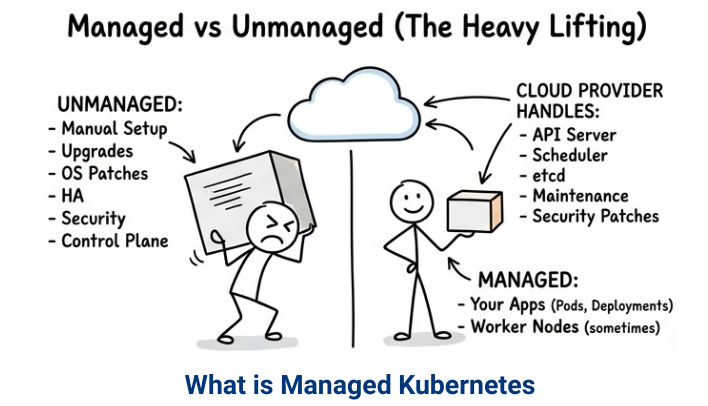
Managed Kubernetes services help you run Kubernetes without worrying about installing or maintaining control planes, servers, or upgrades. Cloud providers handle the heavy work, so you can focus on deploying applications.
Managed Kubernetes means the cloud provider takes care of:
You only manage:
? In simple words: Managed Kubernetes lets you focus on your applications while the cloud provider handles the infrastructure.
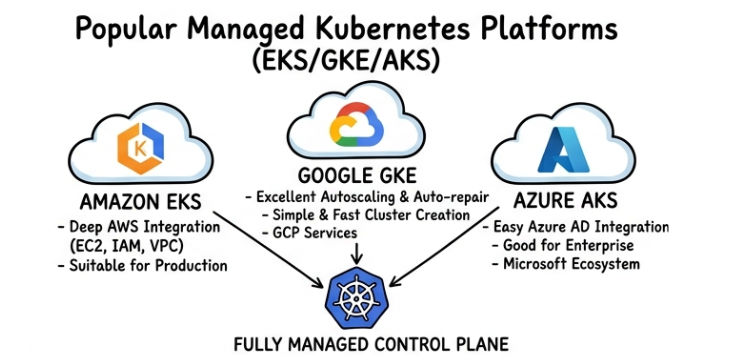
? Perfect for microservices and highly scalable applications.
Setting up a Kubernetes cluster on cloud platforms like AWS, Google Cloud, and Azure is simple using their CLI tools. Below are examples with clear explanations.
AWS EKS (using eksctl)
eksctl create cluster \\
  --name demo-cluster \\
  --region ap-south-1 \\
  --nodes 2
Explanation:
eksctl create cluster → This command creates a new Kubernetes cluster on AWS-name demo-cluster → Specifies the name of your cluster-region ap-south-1 → Selects the AWS region (Mumbai in this case)-nodes 2 → Creates 2 worker nodes in the cluster? This is one of the easiest ways to launch a fully managed Kubernetes cluster on AWS.
Google Kubernetes Engine (GKE) using gcloud
gcloud container clusters create demo-cluster \\
  --num-nodes 2 \\
  --zone asia-south1-a
Explanation:
gcloud container clusters create → Command to create a Kubernetes cluster on GCPdemo-cluster → Name of the cluster-num-nodes 2 → Defines the number of nodes to create-zone asia-south1-a → Specifies the GCP zone (India region)? GKE provides a fast and reliable way to create clusters with built-in scaling and management.
Azure Kubernetes Service (AKS) using Azure CLI
az aks create \\
  --resource-group demo-rg \\
  --name demo-cluster \\
  --node-count 2
Explanation:
az aks create → Command to create a Kubernetes cluster on Azure-resource-group demo-rg → Specifies the resource group where the cluster will be created-name demo-cluster → Sets the cluster name-node-count 2 → Creates 2 worker nodes? AKS simplifies Kubernetes deployment with strong integration into the Azure ecosystem.
After creating your Kubernetes cluster, you need to configure kubectl so it can connect and interact with your cloud cluster.
AWS EKS
aws eks update-kubeconfig \\
  --region ap-south-1 \\
  --name demo-cluster
Explanation:
aws eks update-kubeconfig → Updates your local kubeconfig file to connect with EKS-region ap-south-1 → Specifies the AWS region where the cluster is running-name demo-cluster → Defines the cluster name? This command allows kubectl to communicate with your EKS cluster.
Google Kubernetes Engine (GKE)
gcloud container clusters get-credentials demo-cluster \\
  --zone asia-south1-a
Explanation:
gcloud container clusters get-credentials → Fetches cluster credentialsdemo-cluster → Name of the cluster-zone asia-south1-a → Specifies the zone where the cluster is deployed? This sets up authentication so kubectl can access your GKE cluster.
Azure Kubernetes Service (AKS)
az aks get-credentials \\
  --resource-group demo-rg \\
  --name demo-cluster
Explanation:
az aks get-credentials → Downloads cluster credentials for kubectl-resource-group demo-rg → Specifies the resource group-name demo-cluster → Cluster name? This connects your local kubectl to the AKS cluster.
Verify Connection
kubectl get nodes
Explanation:
kubectl get nodes → Lists all worker nodes in the cluster? If nodes are displayed, your cluster is successfully connected.
In Kubernetes, applications are deployed using YAML configuration files. These files define how your application should run inside the cluster.
apiVersion: apps/v1
kind: Deployment
metadata:
  name: my-app
spec:
  replicas: 2
  selector:
    matchLabels:
      app: my-app
  template:
    metadata:
      labels:
        app: my-app
    spec:
      containers:
      - name: my-app
        image: nginx
        ports:
        - containerPort: 80
Explanation:
apiVersion: apps/v1 → Specifies the API version for Deploymentkind: Deployment → Defines that we are creating a Deploymentmetadata.name: my-app → Name of the Deploymentreplicas: 2 → Runs 2 instances (pods) of the applicationselector.matchLabels → Matches pods with label app: my-apptemplate.metadata.labels → Labels applied to the podscontainers.name → Name of the containerimage: nginx → Uses the Nginx Docker imagecontainerPort: 80 → Exposes port 80 inside the container? This configuration creates a scalable application with 2 running pods.
kubectl apply -f deployment.yaml
Explanation:
kubectl apply -f deployment.yaml → Creates or updates resources defined in the YAML file
? After running this command, your application will be deployed to the Kubernetes cluster.
Kubernetes uses Services and Ingress Controllers to expose applications to external users. A LoadBalancer Service is the easiest way to make your app accessible on the internet.
Service with LoadBalancer
apiVersion: v1
kind: Service
metadata:
  name: my-service
spec:
  type: LoadBalancer
  selector:
    app: my-app
  ports:
  - port: 80
    targetPort: 80
Explanation:
apiVersion: v1 → Specifies the API versionkind: Service → Defines a Kubernetes Servicemetadata.name: my-service → Name of the Servicetype: LoadBalancer → Exposes the app externally using a cloud load balancerselector.app: my-app → Connects the service to pods with label app: my-appport: 80 → Port exposed to userstargetPort: 80 → Port on which the container is running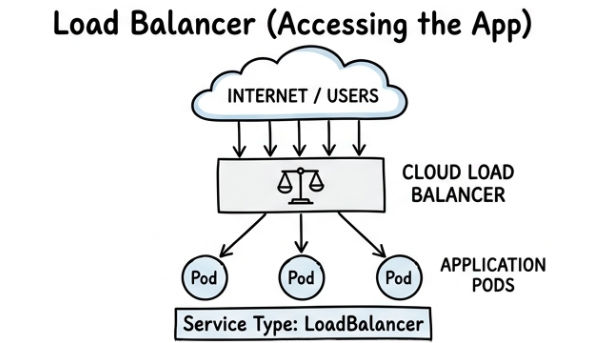
? This service routes external traffic to your application pods
Apply the Service
kubectl apply -f service.yaml
Explanation:
kubectl apply -f service.yaml → Creates the service in the cluster
? Cloud automatically creates an external IP.
Kubernetes supports automatic scaling using the Horizontal Pod Autoscaler (HPA). It adjusts the number of pods based on resource usage like CPU, ensuring your application handles traffic efficiently without manual intervention.
HPA (Horizontal Pod Autoscaler) – CLI
kubectl autoscale deployment my-app \\
  --cpu-percent=50 \\
  --min=2 \\
  --max=10
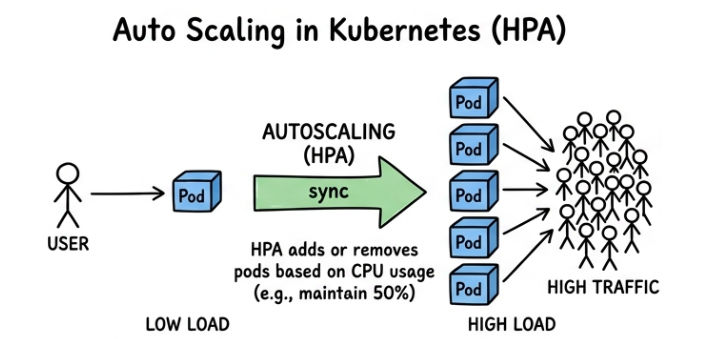
This command enables auto-scaling for the my-app deployment. Kubernetes will maintain CPU usage around 50% and automatically scale the number of pods between 2 and 10 based on load.
YAML Version (HPA Configuration)
apiVersion: autoscaling/v2
kind: HorizontalPodAutoscaler
metadata:
  name: my-app-hpa
spec:
  scaleTargetRef:
    apiVersion: apps/v1
    kind: Deployment
    name: my-app
  minReplicas: 2
  maxReplicas: 10
  metrics:
  - type: Resource
    resource:
      name: cpu
      target:
        type: Utilization
        averageUtilization: 50
This configuration defines an HPA resource that automatically scales the my-app deployment between 2 and 10 pods, keeping CPU utilization around 50% for optimal performance.
In cloud-based Kubernetes environments, storage is managed using cloud provider services, making data persistence reliable and scalable. Instead of storing data inside containers (which is temporary), Kubernetes uses external storage solutions.
These services ensure your application data remains safe even if pods restart or fail.
Example: PersistentVolumeClaim (PVC)
apiVersion: v1
kind: PersistentVolumeClaim
metadata:
  name: my-pvc
spec:
  accessModes:
    - ReadWriteOnce
  resources:
    requests:
      storage: 5Gi
This configuration requests 5GB of persistent storage from the cloud provider. Kubernetes automatically binds this claim to an available Persistent Volume.
Kubernetes networking allows communication between pods and external users. It provides different service types to expose applications based on use case.
? These networking options help manage traffic efficiently in cloud environments.
Example: Ingress Configuration
apiVersion: networking.k8s.io/v1
kind: Ingress
metadata:
  name: my-ingress
spec:
  rules:
  - host: myapp.com
    http:
      paths:
      - path: /
        pathType: Prefix
        backend:
          service:
            name: my-service
            port:
              number: 80
This Ingress configuration routes traffic from myapp.com to the my-service service inside the cluster, enabling clean and user-friendly URLs.
Security is a critical part of running Kubernetes in the cloud. Kubernetes provides built-in mechanisms like RBAC (Role-Based Access Control) and integrates with cloud IAM systems to control access and permissions effectively.
RBAC (Role-Based Access Control)
apiVersion: rbac.authorization.k8s.io/v1
kind: Role
metadata:
  name: pod-reader
rules:
- apiGroups: [""]
  resources: ["pods"]
  verbs: ["get", "watch", "list"]
This configuration defines a role that allows read-only access to pods. It ensures users or services can only perform limited actions like viewing and listing resources, improving cluster security.
Cloud platforms provide seamless integration with their Identity and Access Management (IAM) systems for secure authentication and authorization:
? Combining RBAC with cloud IAM ensures secure and controlled access to your Kubernetes cluster.
| Feature | EKS (AWS) | GKE (Google Cloud) | AKS (Azure) |
|---|---|---|---|
| Ease of Setup | Moderate (requires more configuration) | Very easy (quick setup) | Easy (simplified process) |
| Control Plane Management | Fully managed (paid) | Fully managed (free/basic) | Fully managed (free) |
| Auto Scaling | Good (needs configuration) | Excellent (advanced auto-scaling) | Good (simple setup) |
| Performance | High | Very high (Google optimized) | High |
| Integration | Deep AWS services (EC2, IAM, VPC, S3) | Strong GCP services (BigQuery, Cloud Storage) | Strong Azure services (.NET, AD, DevOps) |
| Security | AWS IAM-based | Google IAM + Workload Identity | Azure AD integration |
| Networking | More flexible but complex | Simple and efficient | Easy to configure |
| Pricing | Control plane is paid | Free control plane (standard tier may cost) | Free control plane |
| Best Use Case | Large-scale AWS-based apps | Performance & ease of use | Enterprise & Microsoft ecosystem |
Managing costs in cloud-based Kubernetes environments is essential for efficient resource utilization. By using the right strategies, you can reduce unnecessary expenses while maintaining performance and scalability.
Running Kubernetes on cloud platforms like EKS, GKE, and AKS makes production deployments more efficient and reliable. It simplifies infrastructure management while providing built-in scalability, security, and high availability.
