
Author
If you are working with Spring Boot applications, you already know how important it is to run your app smoothly across different environments. But setting up the same environment again and again can be time-consuming and error-prone.
This is where Docker comes in.
With Docker, you can package your Spring Boot application along with everything it needs—like Java, libraries, and dependencies—into a single container. Once built, this container can run anywhere without any issues.
? In simple terms: Build once, run anywhere.
Using Docker with Spring Boot is not just a trend—it solves real problems developers face every day.
Key Benefits
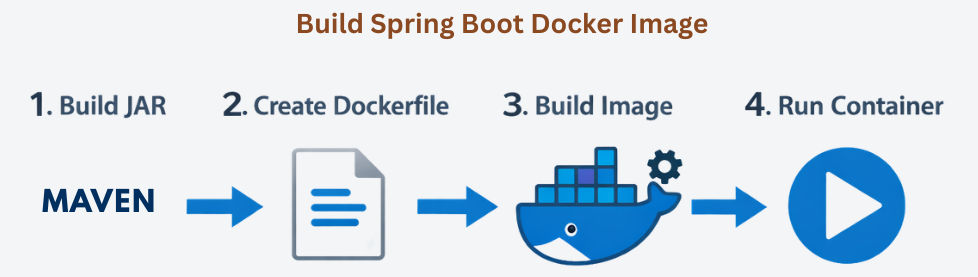
First, package your application into a runnable file.
mvn clean package
? This command builds your project and creates a .jar file that contains your complete Spring Boot application.
Output: target/app.jar
Now create a Dockerfile to define how your Docker image will be built.
FROM openjdk:17-jdk-slim
WORKDIR /app
COPY target/app.jar app.jar
EXPOSE 8080
ENTRYPOINT ["java","-jar","app.jar"]
? This file tells Docker to use Java, copy your app, and run it inside the container.
Next, convert your application into a Docker image.
docker build -t springboot-app .
? This command reads the Dockerfile and creates a Docker image named springboot-app.
Finally, run your application using a container.
docker run -p 8080:8080 springboot-appv
? This starts your app inside a container and maps it to your local machine.
? Your app will run at: http://localhost:8080
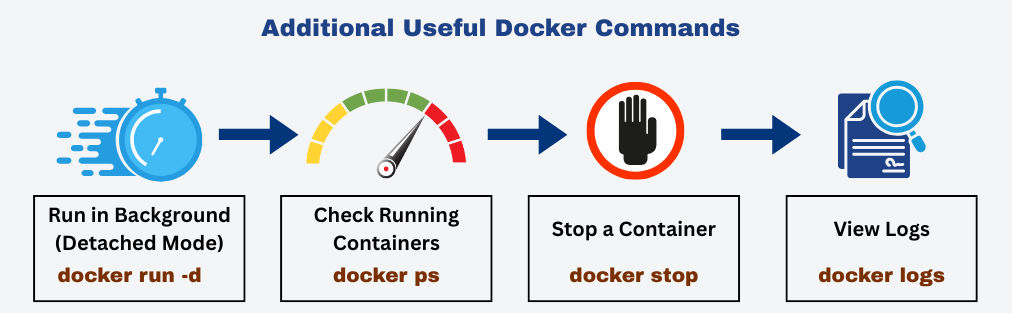
Run in Background (Detached Mode)
docker run -d -p 8080:8080 springboot-app
? This command runs your container in the background, so your terminal remains free for other tasks.
Check Running Containers
docker ps
? This shows a list of all currently running containers along with their IDs, ports, and status.
Stop a Container
docker stop <container_id>
? This command safely stops a running container using its container ID.
View Logs (Very Important)
docker logs <container_id>
? This displays logs of the container, which helps you debug errors and check application output.
Use Lightweight Base Image
FROM openjdk:17-jdk-slim
? Using a lightweight base image reduces your Docker image size and helps your container start faster.
Keep Image Size Small
.dockerignore? Removing unused files (like logs, .git, or build caches) keeps your image clean, faster to download, and more efficient to run.
# Stage 1: Build
FROM maven:3.9.9-eclipse-temurin-21 AS build
WORKDIR /app
COPY . .
RUN mvn clean package -DskipTests

# Stage 2: Run
FROM openjdk:17-jdk-slim
WORKDIR /app
COPY --from=build /app/target/app.jar app.jar
ENTRYPOINT ["java","-jar","app.jar"]
This approach uses two stages:
? It removes unnecessary build files, making the final image smaller, faster, and more production-ready.
Avoiding these common mistakes can save you a lot of debugging time:
target/ folderEXPOSE 8080 and correct port mappingmvn clean package before Docker buildDocker is especially useful in real-world development scenarios like:
? In short, Docker helps you build scalable, consistent, and production-ready applications.
Building and running Spring Boot Docker images is one of the most valuable skills for modern developers.
It helps you make your application:
Instead of spending time fixing environment problems, you can focus on what truly matters—building better features and improving your application.
