
Durgesh Tiwari
Author
Modern applications need to be deployed quickly, run consistently across different environments, and scale easily as user traffic grows. However, applications may behave differently across environments because of differences in operating systems, software versions, libraries, or missing dependencies.
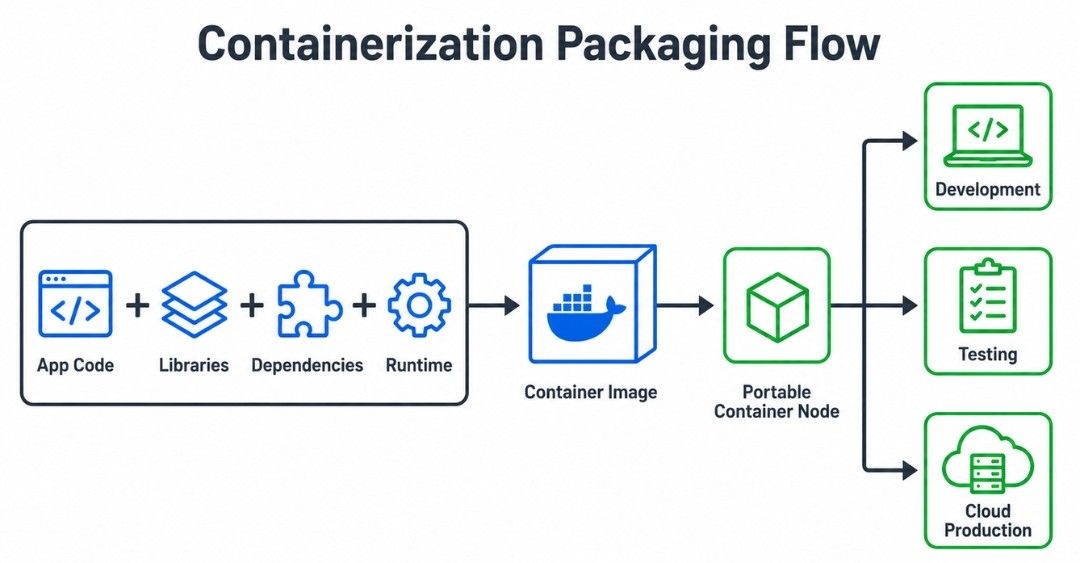
Containerization solves this problem by packaging an application along with everything it needs to run, such as application code, libraries, dependencies, runtime, and configuration files.
Today, containerization is widely used in cloud computing, DevOps, CI/CD, and microservices to build, deploy, and manage applications efficiently.
Containerization is the process of packaging an application and its dependencies into a lightweight, portable unit called a container.
A container includes the application code, required libraries, runtime, dependencies, and configuration. Containers share the host operating system kernel, so they generally use fewer resources and start faster than virtual machines.
In simple words, Containerization packages an application with everything it needs so it can run consistently across different environments.
The basic process is:
Application Code
       ↓
Application + Dependencies
       ↓
   Container Image
       ↓
     Container
       ↓
Development / Testing / Production
The application and its dependencies are packaged into a Container Image. The image is then used to create one or more containers in different environments.
This helps maintain consistency between development, testing, and production.
Example
A developer creates a Node.js web application that requires Node.js, npm packages, application code, and configuration files.
These requirements are packaged into a container image. The same image can then be used to run the application on a developer's laptop, testing environment, and cloud server without manually installing the same dependencies on each machine.
Consistent application behavior across environments.
Faster application deployment.
Better resource utilization.
Easy application scaling.
Simplified application management.
Improved portability.
Faster development and testing.
Supports microservices architecture.
Helps automate deployment through CI/CD.
Before containers became popular, developers often faced deployment problems caused by differences between development, testing, and production environments.
For example, an application may work on a developer's computer but fail after deployment because the production server has a different version of Java, Python, Node.js, or another required dependency.
Containerization packages the application and its dependencies together, reducing these environment-related problems.
Organizations use containerization to:
Eliminate "works on my machine" problems.
Deploy applications quickly.
Improve portability.
Simplify DevOps workflows.
Support Continuous Integration and Continuous Deployment (CI/CD).
Deploy and manage microservices efficiently.
Scale applications more easily.
Example
Consider an e-commerce application consisting of multiple microservices:
                    E-Commerce Application
                             │
          ┌──────────────────┼──────────────────┐
          ↓                  ↓                  ↓
     User Service       Order Service      Payment Service
          │                  │                  │
          └────────────── Containers ───────────┘
                             │
                             ↓
                      Cloud Infrastructure
Each microservice can be packaged into its own container.
If traffic increases during a sale, additional containers can be started for the services experiencing high traffic.
This makes the application scalable, portable, and easier to deploy and manage.
Docker is a platform used to create, run, and manage containers.
It provides tools for building Docker Images, running them as Containers, and managing resources such as networks and volumes.
In simple words, Docker is a platform for building and running containers.
Docker follows a basic workflow:
Write the application code.
Create a Dockerfile that defines how the application image should be built.
Build a Docker Image.
Run the image as a Container.
Deploy the container to a server or cloud platform.
Simple Flow
Application Code
       ↓
   Dockerfile
       ↓
   Docker Image
       ↓
    Container
       ↓
Server / CloudDocker is useful when applications need to be developed, tested, and deployed across different environments.
Without Docker, developers may need to install and configure the required runtime, libraries, and dependencies separately on each machine.
Docker provides a repeatable application environment, making deployment easier and reducing environment-related configuration problems.
Why Developers Use Docker
Simplify application deployment.
Reduce environment-related configuration problems.
Start applications quickly.
Support microservices architecture.
Simplify CI/CD workflows.
Improve application portability.
Make application environments easier to reproduce.
Example
Suppose a team develops an online food delivery API using Node.js 20.
The application requires Node.js, npm packages, application code, and configuration files.
Instead of installing and configuring these requirements separately on every developer machine and server, the team creates a Dockerfile containing the required setup.
Docker uses the Dockerfile to build a Docker Image.
The same image is then used to create containers in development, testing, and production.
Node.js Application
        ↓
    Dockerfile
        ↓
    Docker Image
        ↓
 ┌──────┼──────┐
 ↓      ↓      ↓
Dev   Testing  Production
 ↓      ↓      ↓
Container Container Container
Because the same image is used in each environment, the application setup remains consistent.
Lightweight: Uses fewer resources than traditional virtual machines.
Fast: Containers generally start quickly.
Portable: Images can be used across different environments.
Reusable: One image can create multiple containers.
Automatable: Works well with CI/CD pipelines.
Scalable: Multiple containers can run the same application.
Microservices-friendly: Different services can be packaged separately.
Feature | Docker Container | Virtual Machine |
|---|---|---|
Operating System | Shares the host OS kernel and does not require a separate guest OS. | Runs a complete guest operating system inside the VM. |
Startup Time | Usually starts within seconds or less. | Usually takes longer because the complete OS must boot. |
Resource Usage | Uses fewer resources because containers share the host kernel. | Uses more resources because each VM runs its own OS. |
Isolation | Provides process-level isolation between applications. | Provides stronger isolation by separating complete operating systems. |
Size | Usually smaller because it contains the application and its dependencies. | Usually larger because it includes a complete operating system. |
Scalability | Multiple containers can be started quickly with relatively low overhead. | Scaling usually requires more CPU, memory, and storage resources per VM. |
Best For | Microservices, cloud-native applications, and fast deployments. | Full OS environments, legacy applications, and workloads requiring stronger isolation. |
Docker Engine is the core technology used to build and run Docker containers.
It provides the components and runtime environment required to build images, run containers, and manage Docker resources such as networks and volumes.
Docker Engine includes the Docker Daemon, which performs container management operations, and works with the Docker Client through Docker APIs.
In simple words, Docker Engine is the core technology that allows Docker to build, run, and manage containers.
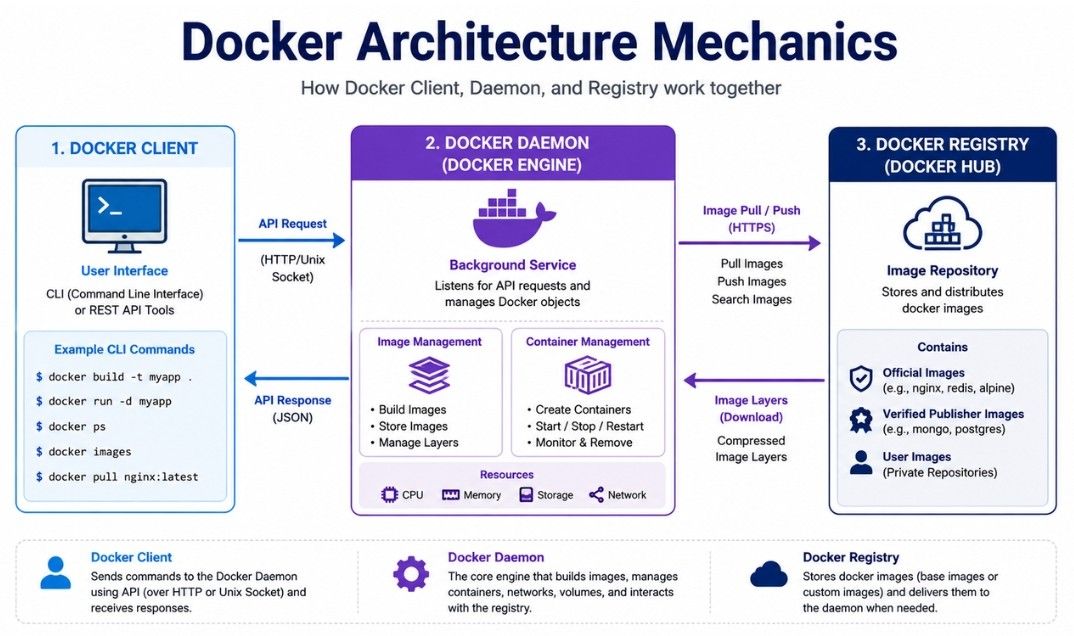
Docker consists of several components that work together to build, store, and run containers.
The main components are:
Docker Client
Docker Daemon
Docker Registry
In simple words, Docker Architecture explains how different Docker components work together to build and run containers.
The Docker Client is the interface developers use to interact with Docker.
When you run commands such as docker build, docker run, or docker pull, the Docker Client sends these requests to the Docker Daemon.
Example
docker run nginxThe Docker Client sends the command to the Docker Daemon, which checks whether the Nginx image is available locally and pulls it from a registry if required.
The Docker Daemon is the background service that performs Docker operations.
It is responsible for:
Building Docker Images.
Running Containers.
Managing Networks.
Managing Volumes.
Pulling Images from Registries.
In simple words, the Docker Daemon is the background service that performs Docker operations.
A Docker Registry is used to store and distribute Docker Images.
Developers can push images to a registry and pull them whenever they are needed.
Docker Hub is a popular public Docker Registry.
Example
A company builds a Docker Image for its web application and pushes it to Docker Hub. The same image can then be pulled and run on different servers.
The basic flow is:
Developer
    ↓
Docker Client
    ↓
Docker Daemon
    ↓
Docker Registry
    ↓
Docker Image
    ↓
Container
Process
The developer runs a Docker command.
The Docker Client sends the request to the Docker Daemon.
The Docker Daemon processes the request.
If the required image is not available locally, the Daemon pulls it from a Docker Registry.
The Daemon creates and starts the Container.
Important Note: The Docker Client sends commands, the Docker Daemon performs the operations, and the Docker Registry stores and distributes images.
A Docker Image is a read-only package that contains the application and everything required to run it, such as application code, runtime, libraries, dependencies, and configuration files.
A Docker Image acts as a blueprint from which Docker creates containers.
In simple words, a Docker Image is a packaged blueprint used to create containers.
Example
A Docker Image for a Python application may contain:
Python runtime.
Flask framework.
Application source code.
Required Python libraries.
Configuration files.
The same image can be used to create multiple containers with the same application setup.
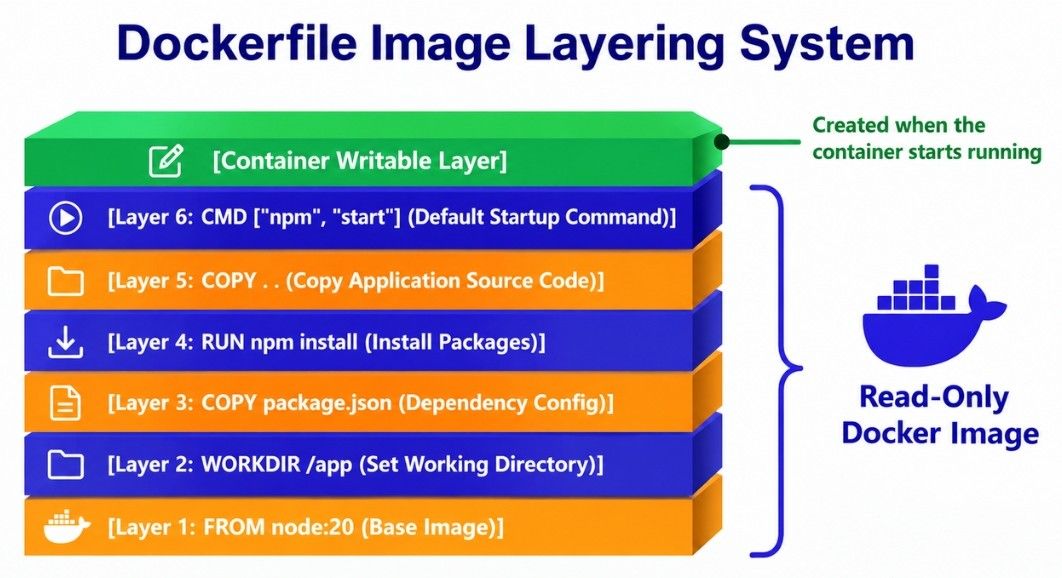
Docker Images are built using multiple layers.
Each major Dockerfile instruction can contribute a layer to the image. Docker can reuse unchanged layers during future builds, which can make image building faster.
For example:
FROM node:20

WORKDIR /app

COPY package.json .

RUN npm install

COPY . .
If only the application source code changes while package.json remains unchanged, Docker may reuse the existing dependency layer instead of rebuilding it from scratch.
In simple words, image layers allow Docker to reuse unchanged parts of an image and reduce unnecessary build work.
A Docker Container is a running instance of a Docker Image.
The image provides the application package, while the container provides the isolated environment in which the application runs.
Multiple containers can be created from the same image, and each container runs as a separate instance.
In simple words, an Image is the blueprint, while a Container is the running instance created from that image.
Example
If nginx:latest is a Docker Image, running that image creates an Nginx container.
A Docker Container goes through different states during its lifetime.
The basic lifecycle is:
Create
   ↓
Start
   ↓
Running
   ↓
Stop
   ↓
RemoveDocker creates a container from a Docker Image.
docker create nginxThe container is created but is not started yet.
The container is started and the application begins running.
docker start <container>The container is actively running the application.
For example, an Nginx container can serve web pages while it is running.
The container is stopped, but the container itself still exists.
docker stop <container>It can be started again later.
The container is permanently removed.
docker rm <container>In simple words, a container can be created, started, run, stopped, and finally removed.
A Dockerfile is a text file that contains instructions for building a Docker Image.
Instead of creating the image manually, developers define the required steps in a Dockerfile, and Docker uses those instructions to build the image.
In simple words, a Dockerfile is a recipe that tells Docker how to create an image.
Example
A simple Dockerfile for a Node.js application:
FROM node:20

WORKDIR /app

COPY . .

RUN npm install

EXPOSE 3000

CMD ["npm", "start"]FROM → Specifies the base image.
WORKDIR → Sets the working directory inside the container.
COPY → Copies application files into the image.
RUN → Executes commands while building the image.
EXPOSE → Documents the port on which the application is expected to listen.
CMD → Specifies the default command to run when the container starts.
When Docker reads this Dockerfile, it builds a Docker Image containing the application and its required dependencies.
Automates image creation.
Creates consistent environments.
Easy to update and maintain.
Supports version control.
Simplifies deployments.
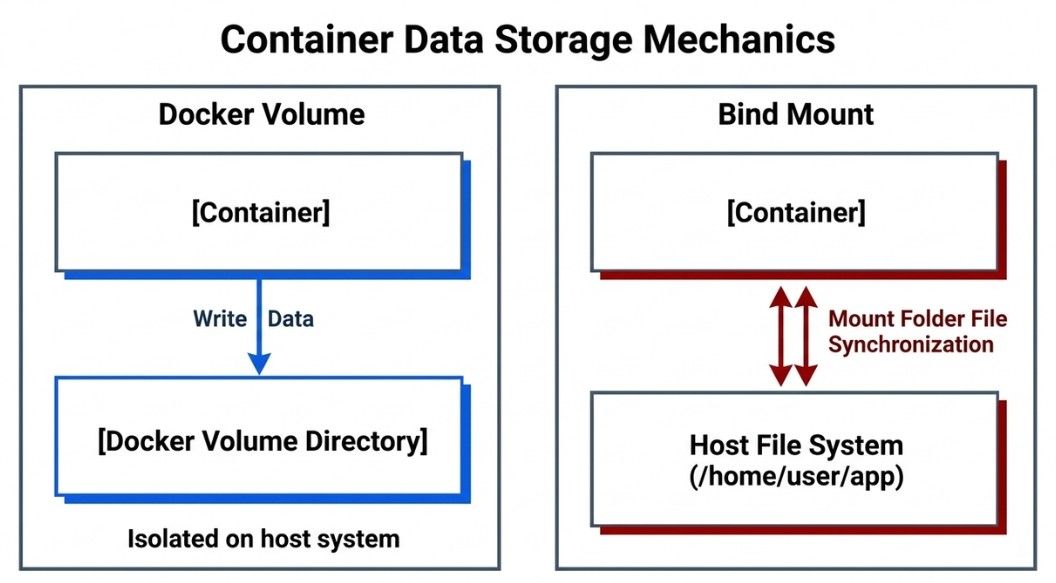
Containers are often treated as temporary environments. When a container is deleted, data stored only inside the container's writable layer may also be lost.
A Docker Volume stores data separately from the container so that the data remains available even when the container is stopped, deleted, or recreated.
In simple words, Docker Volumes provide persistent storage for container data.
Example
A MySQL database is running inside a Docker container.
Instead of storing the database files only inside the container, they are stored in a Docker Volume.
If the container is deleted and a new container is created using the same volume, the database data can still be available.
Provides persistent data storage.
Keeps data available when containers are recreated.
Makes backups and data management easier.
Allows data to be reused by containers when required.
Is managed by Docker.
A Bind Mount connects a specific file or directory on the host machine to a location inside a container.
Unlike Docker Volumes, the storage location is directly controlled by the user.
For example:
Host Machine
/home/developer/app
        ↓
   Bind Mount
        ↓
Container
/app
If the developer changes a file in /home/developer/app, the change can be visible inside the container at /app.
Bind mounts are commonly useful during local development, especially when developers want changes made on the host machine to be immediately available inside the container.
In simple words, a Bind Mount connects a specific host directory or file directly to a location inside a container.
Containers often need to communicate with other containers that are part of the same application.
For example, a web application may have separate containers for the frontend, backend, and database.
When containers are connected to the same Docker network, they can communicate with each other using container names or service names. This avoids depending on container IP addresses, which may change when containers are recreated.
Example
Consider an application with three containers:
Frontend Container
       ↓
Backend Container
       ↓
Database Container
If the database container or service is named database, the backend can connect to MySQL using:
database:3306Here:
database is the container or service name.
3306 is the MySQL port.
Docker provides network name resolution so that the backend can locate the database using its name.
In simple words, containers connected to the same Docker network can communicate with each other using container or service names.
This type of communication is commonly used in multi-container applications and microservices architecture.
Containers can listen on ports inside their own network environment.
To make a containerized application accessible from the host machine, Docker can map a host port to a container port.
For example:
docker run -p 8080:80 nginxHere:
Host Port        Container Port
   8080      →        80
Nginx listens on port 80 inside the container, while users can access the application through port 8080 on the host.
In simple words, Port Mapping connects a port on the host machine to a port inside the container.
Modern applications often use multiple containers that work together.
For example, an application may require:
Nginx
Node.js API
MySQL
Redis
Managing each container separately can be time-consuming.
Docker Compose allows developers to define and manage multiple containers using a single configuration file, usually called compose.yaml or docker-compose.yml.
In simple words, Docker Compose helps you define and run multiple containers together as one application.
Example
An e-commerce application uses:
Nginx for handling web requests.
Node.js for the API.
MySQL for storing data.
Redis for caching.
Instead of starting each container separately, the developer can define all services in a Compose file and run:
docker compose upDocker Compose then starts the required services according to the configuration.
Runs multiple containers together.
Simplifies local development.
Makes service configuration easier.
Reduces manual work.
Improves developer productivity.
Docker Compose uses a YAML configuration file to define the services, networks, volumes, and other settings required by an application.
A Compose file is commonly named:
compose.yamlFor example:
services:
  api:
    image: node:20
    ports:
      - "3000:3000"

  db:
    image: mysql:8
This configuration defines two services:
api — application service.
db — database service.
Docker Compose can create and run these services together.
After creating the Compose file, the application can be started using:
docker compose upDocker Compose reads the configuration file and starts the defined services.
To stop and remove the services:
docker compose downThe basic workflow is:
compose.yaml
     ↓
docker compose up
     ↓
Multiple Services
     ↓
Running Application
This is useful when an application requires multiple containers that need to work together.
Docker Compose allows each service to have its own configuration.
Common service options include:
image — specifies the Docker Image to use.
build — defines how to build an image from a Dockerfile.
ports — maps host ports to container ports.
environment — defines environment variables.
volumes — attaches persistent storage.
networks — connects services to Docker networks.
depends_on — defines service startup dependencies.
Example
services:
  api:
    build: .
    ports:
      - "3000:3000"
    environment:
      DATABASE_HOST: db

  db:
    image: mysql:8
Here:
api is the application service.
db is the MySQL database service.
DATABASE_HOST: db allows the API to use the database service name for communication.
In simple words, Service Configuration defines how each containerized service should be built, connected, and run.
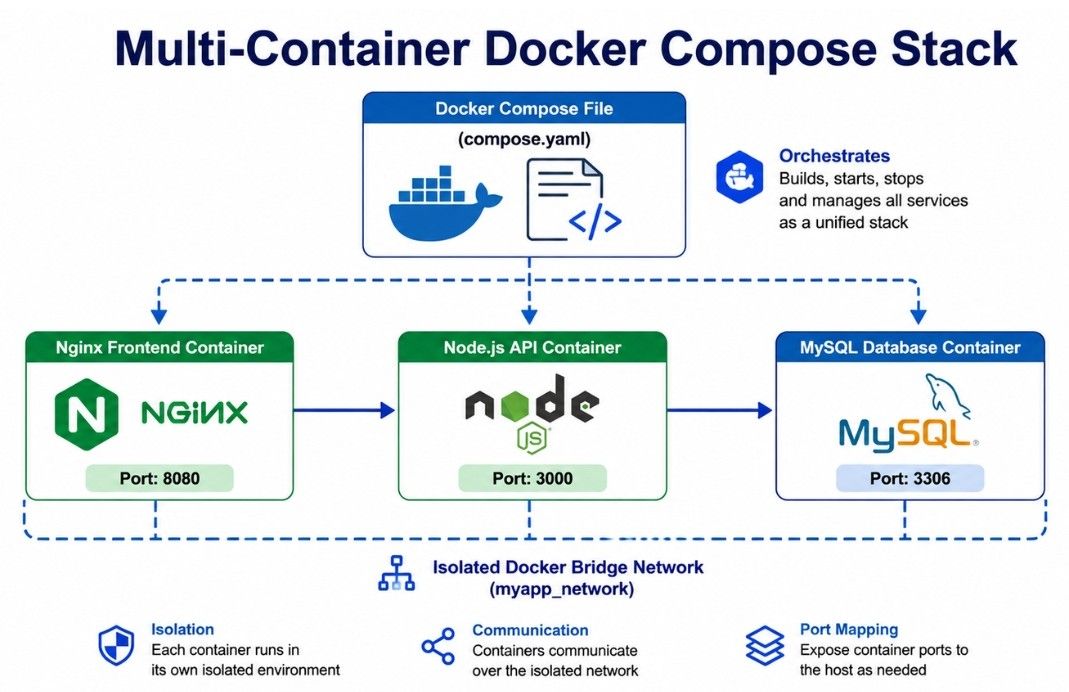
Containers often need to communicate with each other and with external services such as databases, APIs, and message queues.
Container Networking is the process of connecting containers so they can communicate with each other and with other systems.
In simple words, Container Networking allows containers to communicate with each other and external services.
Each container can be connected to one or more Docker networks.
Containers can communicate using:
Container or service names.
IP addresses.
DNS-based name resolution.
Network ports.
Docker provides different networking options depending on the application's requirements.
Example
Suppose an application has three containers:
Nginx — handles incoming requests.
Node.js API — processes application logic.
MySQL — stores application data.
The Nginx container communicates with the Node.js container, while the Node.js container communicates with MySQL through the Docker network.
User
  ↓
Nginx Container
  ↓
Node.js API Container
  ↓
MySQL Container
This allows the different components of the application to work together.
The Bridge Network is commonly used for containers running on the same Docker host.
Containers connected to the same user-defined bridge network can communicate with each other.
Example: A web application container communicates with a database container running on the same server.
The Host Network allows a container to use the host machine's network directly.
It can provide better network performance but offers less network isolation.
Example: A high-performance application requires direct access to the host's network.
The None Network disables normal network connectivity for a container.
It is useful for workloads that do not require network communication.
Example: A container performs a local processing task and does not need access to other containers or external services.
The Overlay Network connects containers running across multiple Docker hosts.
It is useful for distributed container environments where services need to communicate across different machines.
Example: Microservices running on multiple cloud servers communicate with each other through an overlay network.
Enables communication between containers.
Supports microservices architecture.
Simplifies service discovery.
Supports applications running across multiple hosts.
Provides network isolation.
Helps control how containers communicate with other systems.
Consider an online food delivery application built using a microservices architecture.
Each service runs inside its own Docker container:
User Service.
Restaurant Service.
Order Service.
Payment Service.
Notification Service.
Each service is packaged as a Container Image and deployed using Docker.
The containers communicate with each other through Container Networking, allowing the services to exchange requests.
Important application data can be stored using Docker Volumes, while Docker Compose can be used to define and run the required services together during local development.
If traffic increases during lunch hours, additional containers can be started to handle the increased load.
As a result, the application becomes:
Scalable.
Portable.
Easier to deploy.
Easier to manage.
Containerization packages an application and its dependencies into lightweight containers that can run consistently across different environments.
Docker is a widely used platform for creating, running, and managing containers.
A Docker Image acts as a blueprint containing the application, runtime, libraries, dependencies, and configuration required to create containers.
A Docker Container is a running instance of a Docker Image.
Dockerfile defines the instructions used to build a Docker Image.
Image Layers allow Docker to reuse unchanged parts of an image during builds.
Docker Volumes provide persistent storage so important data remains available even when containers are deleted or recreated.
Bind Mounts connect specific host files or directories directly to locations inside containers and are especially useful during development.
Container-to-Container Communication allows containers on the same Docker network to communicate using container or service names.
Port Mapping makes container applications accessible through ports on the host machine.
Docker Compose helps define and run multiple containers together as a single application.
Container Networking allows containers to communicate with each other and with external services.
Bridge, Host, None, and Overlay Networks provide different networking options for different application requirements.
Together, these concepts make application deployment consistent, portable, scalable, and easier to manage, especially for cloud-native and microservices-based applications.
