
Durgesh Tiwari
Author
Whenever you open a website, watch a video, send a message, or use any app, your device is talking to another device over the Internet.
This happens very fast, in just a few milliseconds. But behind the scenes, many networking systems work together to make it possible. They make sure your request reaches the correct server and the response comes back properly to your device.
For example, when you type www.google.com in your browser, your computer first finds the IP address of Google. Then it sends a request to Google’s server. The server processes it and sends the webpage back to your browser.
This same process happens everywhere — social media, online banking, cloud apps, or any website you use.
If you are learning Computer Networking, Backend Development, Cloud, or System Design, then understanding this flow is very important. It is the base of everything.
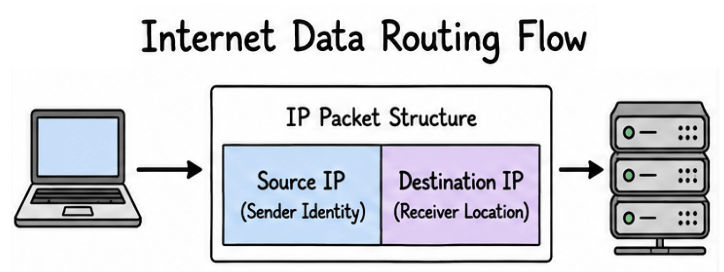
For devices to communicate over the Internet, they must follow a common set of rules. These rules are called Internet Protocols.
You can think of them like traffic rules on a road. If everyone follows the same rules, traffic flows smoothly. In the same way, protocols ensure that data is sent, received, and delivered correctly between devices.
These rules define:
How data is identified
How data is addressed
How data is transmitted
How data is received
Across different networks.
Every device connected to a network needs a unique identity. This identity is called an IP (Internet Protocol) Address.
Without an IP address, a device cannot send or receive data because the network would not know where to deliver the information.
You can think of an IP address like a home address. A courier needs your address to deliver a parcel, and in the same way, the Internet uses an IP address to deliver data to the correct device.
Whenever data is sent over a network, it is broken into small units called packets. Each packet contains two important IP addresses:
Source IP Address – the device that is sending the data
Destination IP Address – the device that should receive the data
Routers use these IP addresses to move the data across different networks until it reaches the correct destination.
When the Internet started, the number of devices was very small, so IPv4 was enough. But as computers, smartphones, servers, and IoT devices increased rapidly, IPv4 started running out of available addresses. To solve this, IPv6 was introduced.
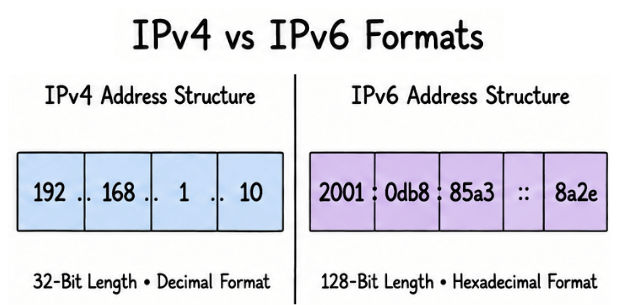
IPv4 (Internet Protocol Version 4) is the most widely used IP addressing system today.
It uses a 32-bit address format, which provides around 4.3 billion unique addresses.
Example:
192.168.1.10For many years, IPv4 worked well. But with the growth of Internet devices, its address space is now limited.
IPv6 (Internet Protocol Version 6) was designed to solve the limitations of IPv4.
It uses a 128-bit address format, which provides an extremely large number of unique addresses — enough for future Internet growth.
Example:
2001:0db8:85a3::8a2e:0370:7334IPv6 also improves routing efficiency and supports automatic configuration, making network management easier.
Feature | IPv4 | IPv6 |
|---|---|---|
Full Form | Internet Protocol Version 4 | Internet Protocol Version 6 |
Address Length | 32-bit | 128-bit |
Address Format | Decimal (e.g., | Hexadecimal (e.g., |
Number of Addresses | About 4.3 Billion | Almost Unlimited |
NAT Support | Required in most networks | Usually Not Required |
Speed | Standard | More Efficient Routing |
Security | Optional | Built-in IPsec Support |
Current Usage | Most Widely Used | Rapidly Growing |
Although IPv6 is the future of the Internet, both IPv4 and IPv6 are widely used today.
As a network grows, managing all devices in a single network becomes difficult. Too many devices can create extra traffic, slow down communication, and make troubleshooting harder.
To solve this, a large network is divided into smaller logical networks called subnets. This process is known as Subnetting.
Think of a company with multiple departments. Instead of putting everyone on one single network, separate subnets are created for teams like Engineering, HR, and Finance. This keeps communication organized and reduces unnecessary traffic between departments.
Benefits of Subnetting
Subnetting provides several important benefits:
Improves network performance
Reduces unnecessary network traffic
Makes network management easier
Increases security by separating departments
Uses IP addresses more efficiently
A company may create separate subnets for:
Engineering
HR
Finance
Sales
Guest Wi-Fi
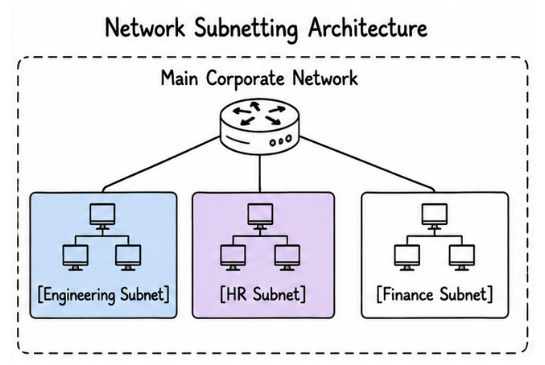
Even though all these departments belong to the same organization, each subnet works as an independent logical network. This makes the overall system more organized, secure, and easier to manage.
Interview Tip: If you are asked “Why do we use subnetting?”, a simple answer is: Subnetting is used to divide a large network into smaller networks so that performance improves, management becomes easier, security increases, and IP addresses are used more efficiently.
An IP Address identifies a device on a network, but inside a Local Area Network (LAN), devices communicate using a MAC (Media Access Control) Address.
A MAC Address is a unique physical address assigned to a network interface by the manufacturer. It usually does not change and is used to identify a device at the hardware level inside a local network.
Example:
00:1A:2B:3C:4D:5EA simple way to understand the difference:
IP Address tells the network where the device is located
MAC Address identifies the exact physical device
Inside a LAN, switches use MAC addresses to forward data to the correct device.
Real-World Example
Suppose your laptop and printer are connected to the same Wi-Fi network. When you send a print command, the switch uses the printer’s MAC address to deliver the data to the correct device.
This ensures that even when many devices are connected, data always reaches the right destination without confusion.
Devices communicate using IP addresses, but inside a local network, data is actually delivered using MAC addresses.
So the question is, what happens when a device knows the IP address but does not know the MAC address of the destination?
To solve this, we use ARP (Address Resolution Protocol).
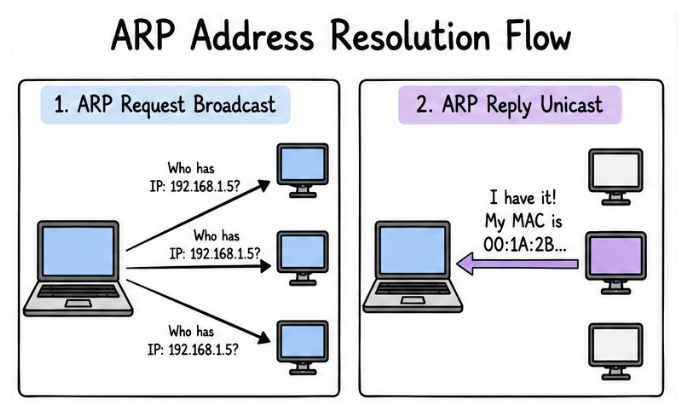
When a device wants to send data within a local network, it first checks its ARP Cache, which stores previously known IP-to-MAC mappings.
If the MAC address is not found, the device sends an ARP Request to the network asking:
“Who has this IP address?”
Every device on the network receives this request, but only the device with the matching IP address responds with its MAC address. The sender then stores this mapping in its ARP Cache for future use, so next time it does not need to ask again.
Without ARP, devices in a local network would not be able to find each other for communication.
Real-World Example
Imagine you are in an office and you know a person’s name, but you don’t know their desk location. You ask everyone in the office, and the right person replies with their exact location. After that, you remember it for next time.
ARP works in a similar way inside a network.
Not all network communication is about sending data like files or websites. Some messages are used only to check if the network is working properly. This is where ICMP (Internet Control Message Protocol) is used.
ICMP is not used to transfer application data. Instead, it is used to test connectivity and report network problems.
It helps answer simple questions like:
Is the destination reachable?
Is the network working properly?
How long does a request take?
Is there any routing issue?
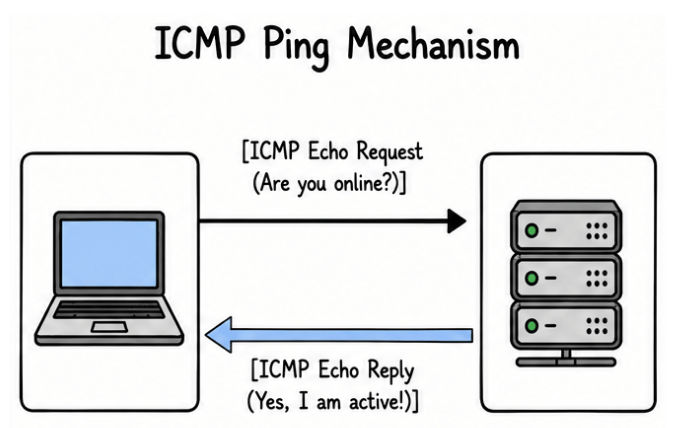
One of the most common tools based on ICMP is the ping command.
When you use ping, your system sends an ICMP Echo Request to another device. If the device is active and reachable, it replies with an ICMP Echo Reply.
This is a quick way to check whether a system or server is online.
Real-World Example
If a website is not opening, a network engineer can use the ping command to check if the server is reachable. If there is no response, it usually means there is a network issue or the server is down.
Whenever you open a website or use an online application, several Internet protocols work together behind the scenes.
The communication usually follows these steps:
Your device gets the destination IP Address.
Subnetting checks whether the destination is on the same network or a different network.
If it's on the same network, ARP finds the destination's MAC Address.
Routers use the IP Address to forward data across different networks.
If a network problem occurs, ICMP helps detect and report the issue.
Each protocol has a different responsibility, but together they make Internet communication fast, reliable, and efficient.
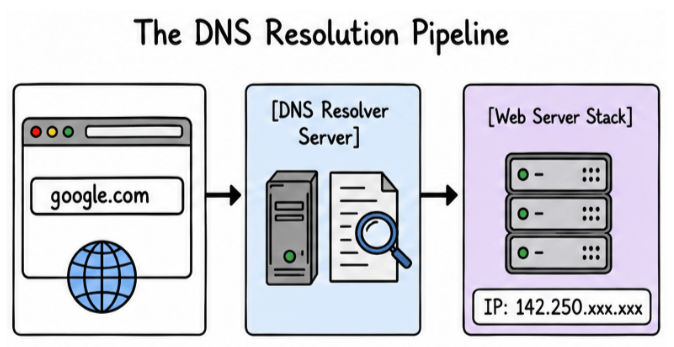
When you open a website, you usually type a name like google.com. But computers don’t understand names like this. They work using IP addresses like 142.250.xxx.xxx.
Now imagine if you had to remember IP addresses for every website you use. It would be very difficult.
To solve this problem, the Internet uses something called DNS (Domain Name System).
DNS works like a simple phonebook of the Internet. Just like you search a person’s name to find their phone number, DNS takes a website name and gives back its IP address.
So when you enter google.com, youtube.com, or amazon.com, DNS quietly finds the correct IP address in the background. Your browser then uses that IP address to open the website.
Without DNS, the Internet would feel very hard to use because we would have to remember numbers instead of simple names.
DNS (Domain Name System) is a system that converts domain names into IP addresses.
Humans prefer easy names like google.com, but machines communicate using numbers. DNS acts as a bridge between the two.
Example:
google.com → 142.250.xxx.xxxWhen you enter a website in your browser, it first sends a request to a DNS server. That server returns the IP address, and then your browser connects to the correct website server and loads the page.
In simple words, DNS helps you open websites using names instead of IP addresses.
DNS is one of the most important parts of the Internet because it makes browsing simple and fast.
Without DNS, every user would need to remember IP addresses for every website they visit, which is not practical at all.
DNS helps by:
Converting domain names into IP addresses
Making websites easy to access and remember
Helping browsers reach the correct server
Handling millions of requests every second across the Internet
Making Internet usage smooth and user-friendly
Almost every website you open starts with a DNS lookup happening in the background.
The process of converting a domain name into an IP address is called DNS Resolution.
When you open a website, a few simple steps happen behind the scenes:
You type a domain name like google.com in your browser.
The browser first checks its DNS cache to see if it already knows the IP address.
If it is not available, the request is sent to a DNS resolver.
The resolver searches across DNS servers to find the correct IP address.
Once found, the IP address is sent back to your browser.
Your browser uses that IP address to connect to the web server.
The server then sends the website data back to your browser, and the page loads.
This whole process happens in a few milliseconds, so it feels instant when you open a website.
DNS is not only used to convert domain names into IP addresses. It also stores different types of information called DNS records.
Each record has a specific purpose. Some help websites load, some handle emails, and some are used for security and verification.
Here are the most commonly used DNS records:
Record | Purpose |
|---|---|
A | Maps a domain name to an IPv4 address |
AAAA | Maps a domain name to an IPv6 address |
CNAME | Points one domain name to another domain name |
MX | Used for email delivery (mail servers) |
NS | Shows which name servers are responsible for the domain |
TXT | Stores extra information like verification and security settings |
Different services use different records. For example, websites mainly use A and AAAA records to load pages, while email systems use MX records to deliver emails correctly.
When you open google.com, close the browser, and open it again after some time, your device does not always repeat the full DNS lookup process.
If it did, every website would take more time to load.
To solve this, DNS uses a concept called DNS Caching.
DNS caching simply means storing the IP address of a website for a short period after it is already found once. So next time you visit the same website, your system can use the saved information instead of asking the DNS server again.
This makes browsing faster and also reduces unnecessary load on the Internet.
DNS caching happens at different levels:
Browser cache – stores recently visited websites
Operating system cache – stores DNS results for system-wide use
DNS resolver cache – stores results at the DNS server level
ISP cache – Internet providers store popular DNS results to speed up access
Before making a new DNS request, your device always checks these caches first. If the IP address is already available, it directly connects to the website without waiting for DNS lookup.
This reduces delay, improves speed, and makes Internet usage smoother.
Cached DNS data cannot be stored forever. It has a fixed time limit called TTL (Time To Live).
TTL decides how long a DNS record should stay in cache.
Once the TTL expires, the cached data is removed. The next time you open the website, a fresh DNS lookup is performed to get the latest IP address.
This is important because websites can change their servers or IP addresses. TTL ensures that your system always gets updated and correct information.
DNS is the first step when you open any website. It finds the correct IP address so that your browser knows where to go. After that, other protocols take over and complete the communication.
Here is the simple flow of what happens:
User enters a domain name
        │
        ▼
DNS finds the IP address
        │
        ▼
Browser connects to the server
        │
        ▼
HTTP/HTTPS sends the request
        │
        ▼
Server sends the response (webpage)
        │
        ▼
Website is displayed on the screen
For example, when you open www.google.com, your browser first asks DNS to find the IP address of Google. Once it gets the IP, the browser connects to the server using HTTP or HTTPS and requests the webpage. The server then responds, and your browser shows the website.
This whole process happens very quickly, usually in a few milliseconds, every time you open a website.
After DNS finds the IP address of a website, the next step is communication between your browser and the web server. This happens using HTTP or HTTPS.
Every time you open a website, use an app, call an API, or shop online, your device is continuously exchanging data with a server using these protocols.
This is why HTTP is considered the base of almost every website, web application, and client-server system.
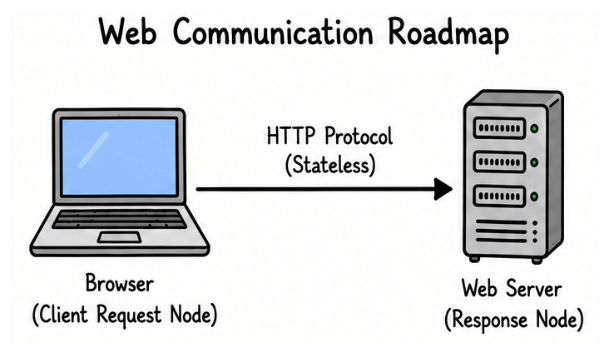
HTTP (Hypertext Transfer Protocol) is a communication protocol used between a client (browser or app) and a web server to exchange data.
It works on a very simple idea called the Request-Response model.
Here is how it works step by step:
The client sends a request to the server.
The server processes that request.
The server sends back a response.
The client displays the result to the user.
For example, when you open www.google.com, your browser sends an HTTP request to Google's server. The server processes it and returns the webpage, which is then shown in your browser.
Browser (Client)
        │
        │ HTTP Request
        ▼
    Web Server
        │
        │ HTTP Response
        ▼
Browser displays the webpage
HTTP is called a stateless protocol. This means the server does not remember previous requests. Every request is treated as a new request.
Because of this, websites use things like Cookies and Sessions to remember user information like login status, preferences, or cart data.
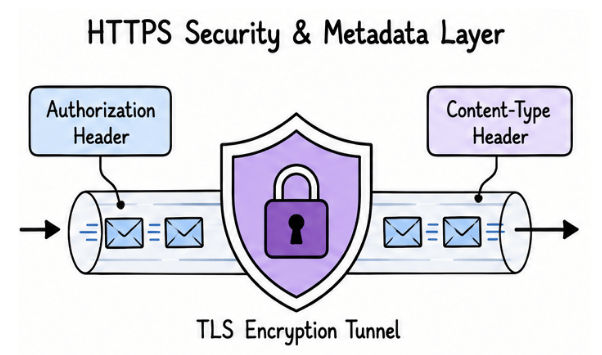
HTTPS (Hypertext Transfer Protocol Secure) is the secure version of HTTP.
It uses TLS (Transport Layer Security) to encrypt the data that is exchanged between the client (browser/app) and the server. This means the information is converted into a secure form while travelling over the network, so no one can easily read or modify it.
HTTPS mainly provides three important security features:
Encryption – Keeps data private while it travels over the Internet
Authentication – Confirms that you are connected to the correct website
Data Integrity – Ensures data is not changed during transfer
For example, when you log in to your email, do online banking, or make a payment, HTTPS makes sure your sensitive data like passwords and card details are protected.
Today, almost every website uses HTTPS because it is safer and builds trust for users.
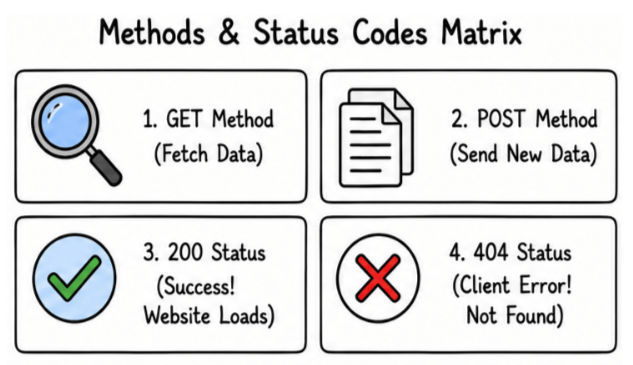
HTTP uses different request methods (also called HTTP verbs) to tell the server what action should be performed.
Each method has a clear role in communication between client and server.
Method | Purpose |
|---|---|
GET | Fetch data from the server |
POST | Send new data to the server |
PUT | Replace existing data completely |
PATCH | Update only part of existing data |
DELETE | Remove data from the server |
HEAD | Get only response headers (no body) |
OPTIONS | Check supported methods on the server |
To make it simple, think like this:
Opening a website → GET
Creating a new account → POST
Updating profile picture → PATCH
Replacing full profile details → PUT
Deleting a post → DELETE
These methods are the base of REST APIs, which are used in almost every modern web application, backend system, and mobile app communication.
After a server processes an HTTP request, it sends back a response called an HTTP Status Code. This code simply tells the client what happened with the request — whether it worked, failed, or needs some action.
For example:
200 OK means everything worked fine
404 Not Found means the requested page does not exist
These codes are very important in web development because they help us quickly understand what went wrong.
HTTP status codes are grouped into five main categories:
Code Range | Meaning |
|---|---|
1xx | Informational responses |
2xx | Success |
3xx | Redirection |
4xx | Client-side errors |
5xx | Server-side errors |
Here are some commonly used status codes you will see in real applications:
Status Code | Meaning | Simple Example |
|---|---|---|
200 OK | Request successful | Website loads correctly |
201 Created | New resource created | New user account created |
301 Moved Permanently | URL permanently changed | Old website redirected to new URL |
302 Found | Temporary redirect | Page redirected for a short time |
400 Bad Request | Wrong or incomplete request | Missing required form data |
401 Unauthorized | Login required | User not logged in |
403 Forbidden | No permission | Access blocked page |
404 Not Found | Resource not available | Page deleted or wrong URL |
500 Internal Server Error | Server crash or bug | Backend issue |
503 Service Unavailable | Server temporarily down | Maintenance or overload |
When you work with web applications, APIs, or backend systems, these status codes help you quickly understand what is happening in the system.
Instead of guessing the problem, you can directly see whether it is:
A client mistake (4xx)
A server issue (5xx)
Or a successful response (2xx)
Along with the actual data, every HTTP request and response also contains HTTP Headers.
Headers are extra information sent between client and server. They are not the main data (like HTML, JSON, or files), but they help both sides understand how to handle that data correctly. You can think of them as instructions or metadata.
For example, headers can tell:
Which browser or app is making the request
What type of response the client expects
Whether the user is logged in or not
Which language the user prefers
On the server side, headers can tell:
What type of data is being sent back
Whether the response should be stored in cache
Whether a cookie should be saved in the browser
Basic information about the server
Header | Purpose |
|---|---|
Host | Specifies the website being requested |
User-Agent | Identifies browser or application |
Authorization | Sends login or access credentials |
Accept | Tells server what type of response is accepted |
Content-Type | Defines format of request data |
Header | Purpose |
|---|---|
Content-Type | Type of data being returned (HTML, JSON, etc.) |
Content-Length | Size of the response data |
Cache-Control | Controls how response is cached |
Set-Cookie | Stores cookie in browser |
Server | Gives information about the server |
HTTP is a stateless protocol, which means it does not remember previous requests. Every request is treated as new.
To solve this, websites use cookies.
A cookie is a small piece of data stored in your browser. When you visit a website, it stores some information in your browser. Next time you visit the same website, the browser automatically sends that cookie back, so the website can recognize you.
Cookies are commonly used for:
Keeping users logged in
Session tracking
“Remember me” feature
Shopping cart data
User preferences like language or theme
Personalized content
Real-World Example
When you log in to Amazon or Facebook and you are still logged in even after closing and reopening the browser, it happens because a cookie is stored in your browser that remembers your session.
A session is another way to remember a user, but here the data is stored on the server side, not in the browser.
When you log in to a website, the server creates a unique Session ID and sends it to your browser. Your browser stores this ID and sends it back with every request. The server uses it to identify you and keep you logged in.
Since the actual data is stored on the server, sessions are more secure compared to storing everything in the browser.
Sessions are commonly used in:
Login systems
Online banking
E-commerce websites
Medical and enterprise systems
Any system where security is important
Real-World Example
When you log in to internet banking, the bank creates a session for you. As long as that session is active, you can move between pages without logging in again.
Normally, every HTTP request may require a new TCP connection. Creating a new connection again and again takes time and adds extra overhead.
To solve this, HTTP Keep-Alive was introduced.
It allows multiple HTTP requests and responses to use the same TCP connection instead of creating a new one every time. This makes communication more efficient.
Because of this reuse, websites load faster and the overall network load is reduced.
Benefits of HTTP Keep-Alive:
Reduces connection setup time
Improves page loading speed
Reduces number of TCP connections
Lowers network overhead
Improves overall server efficiency
Today, Keep-Alive is enabled by default in most modern browsers and servers.
As websites became more advanced, HTTP also evolved to improve speed, reduce latency, and handle more requests efficiently.
The three most common versions are HTTP/1.1, HTTP/2, and HTTP/3.
Uses persistent TCP connections.
Processes one request at a time on a connection.
Works well but can become slower for complex websites.
Supports Multiplexing, allowing multiple requests on a single connection.
Uses Header Compression to reduce data transfer.
Loads webpages faster than HTTP/1.1.
Uses QUIC, which is built on UDP instead of TCP.
Establishes connections faster.
Reduces latency.
Performs better on unstable or mobile networks.
Feature | HTTP/1.1 | HTTP/2 | HTTP/3 |
|---|---|---|---|
Transport Protocol | TCP | TCP | QUIC (Built on UDP) |
Request Handling | One request at a time | Multiple requests together | Multiple requests with lower latency |
Header Compression | Not Available | Available | Available |
Connection Setup | Slow | Faster | Fastest |
In simple terms:
HTTP/1.1 introduced persistent connections.
HTTP/2 made data transfer faster by allowing multiple requests over a single connection.
HTTP/3 uses QUIC to reduce connection time and improve performance, especially on slow or unstable networks.
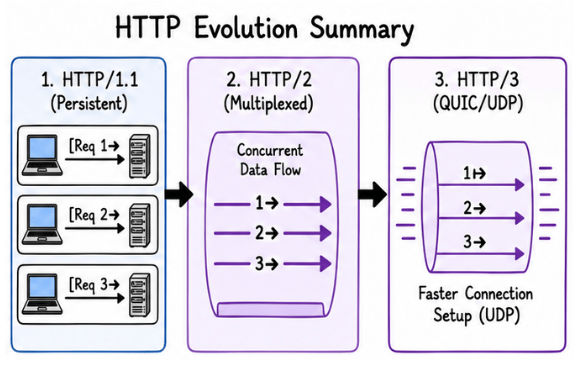
Interview Tip: You don't need to remember every feature of each HTTP version. Just remember this simple order: HTTP/1.1 → HTTP/2 → HTTP/3. Each new version was introduced to make web communication faster, reduce latency, and improve overall performance.
