
Durgesh Tiwari
Author
Debugging is the process of finding and fixing errors (bugs) in a Java program. Modern IDEs like IntelliJ IDEA, Eclipse, and NetBeans provide powerful debugging tools that allow developers to analyze code execution step by step.
In simple words: Debugging helps you pause your program and see exactly what is happening inside the code.
Debugging is a technique used to run a program in a controlled way so that developers can:
Find logical errors
Check variable values
Understand program flow
Fix unexpected behavior
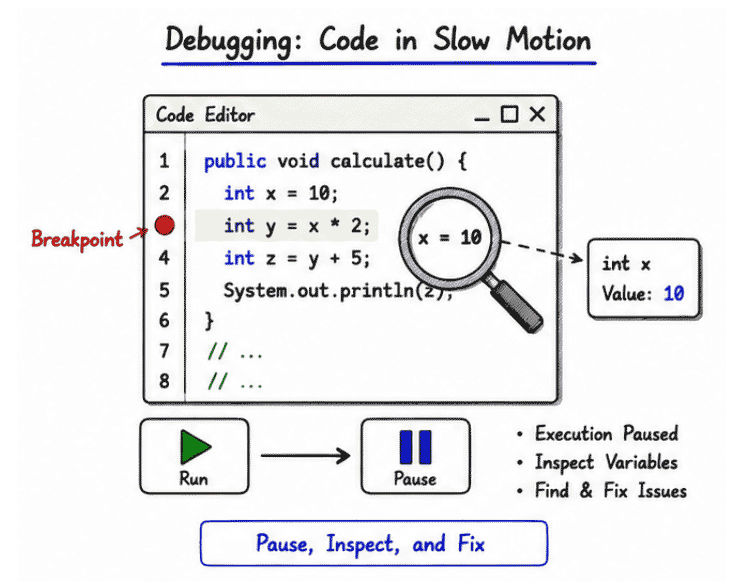
Unlike normal execution, debugging allows you to pause the program at any line and inspect its state.
Set a breakpoint on a line
Run program in debug mode
Program pauses at breakpoint
Inspect variables (a, b, result)
Step through code line by line
Identify and fix issues
Debugging is essential for building reliable Java applications.
Benefits:
Helps find hidden bugs quickly
Improves understanding of code flow
Allows real-time variable inspection
Fixes runtime and logical errors
Improves code quality
👉 Debugging is a must-have skill for every Java developer.
Modern Java IDEs like IntelliJ IDEA, Eclipse, and NetBeans provide powerful debugging tools:
Breakpoints: Pause program execution at a specific line
Step Into / Step Over / Step Out: Navigate through code step by step
Variables Window: Shows current variable values
Call Stack View: Displays method execution flow
Watches (Expression Evaluation): Monitor variables in real time
Conditional Breakpoints: Stop execution only when condition is true
A breakpoint is a marker that tells the IDE to pause program execution at a specific line.
👉 You click on a line number → a red dot appears → execution stops there.
public class Test {

    public static void main(String[] args) {

        int a = 10;
        int b = 5;

        int result = a / b;   // Breakpoint can be set here

        System.out.println("Result: " + result);

        int x = result + 10;  // Another breakpoint

        System.out.println("Final Value: " + x);
    }
}public class Test {
public static void main(String[] args) {
int a = 10;
int b = 0;
int result = a / b; // breakpoint here
System.out.println(result);
}
}Execution stops at division line
You can inspect values of a and b
Issue becomes clear (division by zero)
Bug can be identified and fixed easily
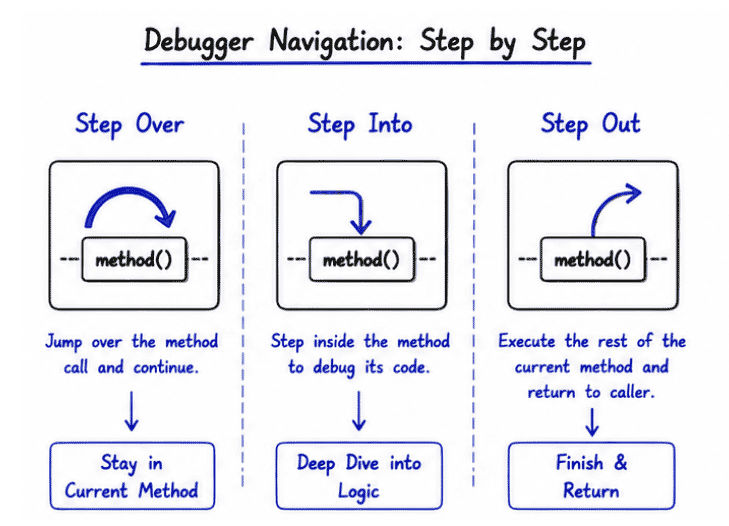
Modern IDEs provide step controls to help developers execute and analyze code line by line during debugging.
These controls make it easier to understand program flow and locate errors.
1. Step Over
Executes the current line of code
Moves to the next line in the same method
Does not go inside method calls
👉 Used when you don’t want to inspect internal method logic.
2. Step Into
Goes inside a method call
Helps debug method-level execution
Useful for analyzing internal logic of functions
👉 Used when you want to deeply inspect how a method works.
3. Step Out
Exits the current method
Returns control to the calling method
Skips remaining lines of current method
👉 Used when you have finished debugging inside a method.
The Variables Window (or Variables panel) is used during debugging to view the current state of variables in a program.
It helps developers see how data changes step by step while the program is running.
What it Shows:
Current values of variables
Object states and fields
Memory references of objects
Updated values after each step execution
Why it is Useful:
Helps track variable changes in real time
Makes debugging easier and faster
Helps find wrong or unexpected values
Improves understanding of program flow
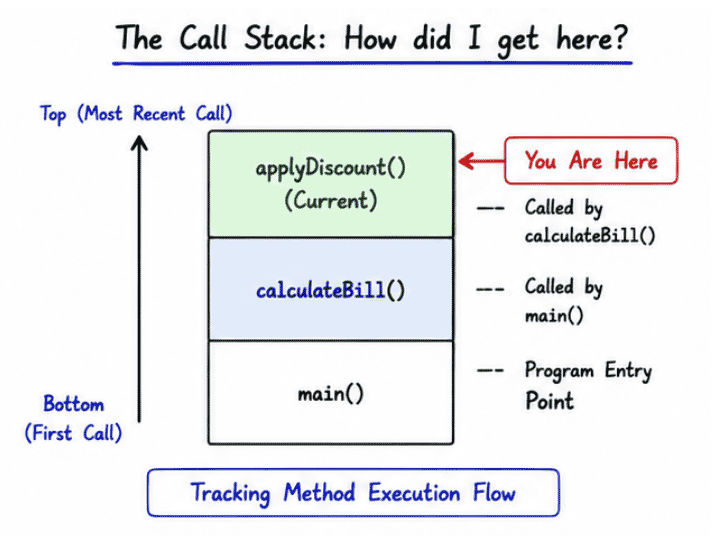
The Call Stack shows the sequence of method calls during program execution in debugging mode.
It helps developers understand how the program reached the current point.
It is useful for:
Tracking method execution flow
Debugging recursive methods
Understanding the execution path of a program
Identifying where an error occurred in method calls
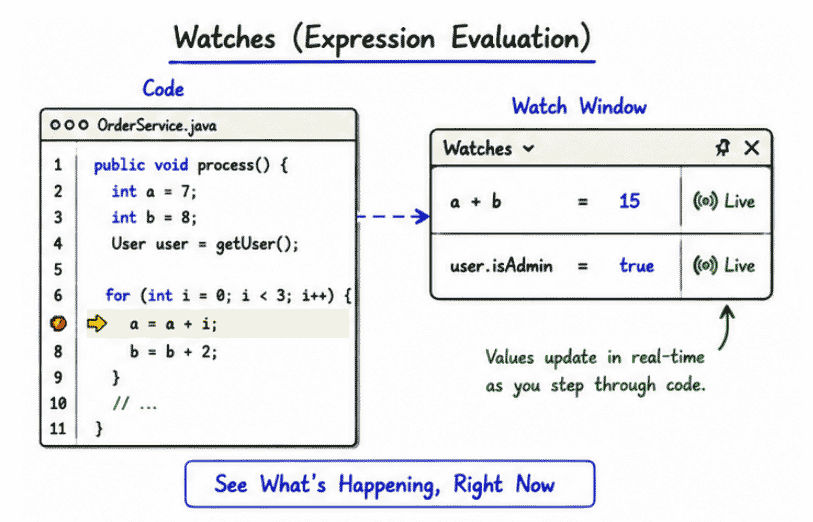
Watches allow you to evaluate expressions during debugging without changing your code.
You can monitor variables or expressions in real time to understand how values are changing.
Example:
a + b👉 The IDE instantly evaluates this expression and shows the result during debugging.
Helps test expressions quickly
No need to modify code
Useful for checking logic and calculations
Improves debugging speed and accuracy
Debugging is widely used in real-world Java applications to identify and fix different types of issues.
Fixing NullPointerException errors
Debugging API requests and responses
Finding loop and conditional logic errors
Checking database values and queries
Understanding complex algorithms and execution flow
Identifying runtime and performance issues
Both debugging and logging are used to identify and fix issues in applications, but they work differently.
Feature | Debugging | Logging |
|---|---|---|
Purpose | Step-by-step code analysis | Recording application events |
Usage | Mainly during development | Development and production |
Execution | Program can be paused | Program runs continuously |
Tool Used | IDE debugger tools | Logging frameworks |
Variable Inspection | Real-time inspection possible | Not directly available |
Error Tracking | Finds exact bug location | Tracks application behavior |
Performance Impact | Temporary during debugging | Continuous logging overhead |
Easy and faster bug detection
Visual understanding of program execution flow
Real-time variable and object inspection
Helps identify logical and runtime errors
Reduces guesswork during troubleshooting
Improves code quality and reliability
Despite its advantages, IDE debugging also has some limitations.
Not suitable for production environments
Can be time-consuming for large applications
Requires manual step-by-step analysis
Excessive debugging may slow development process
Debugging in Java using an IDE is a powerful technique for identifying, analyzing, and fixing program errors efficiently.
Modern IDE debugging tools help developers inspect program execution step by step and understand application behavior clearly.
Helps pause and inspect program execution
Improves understanding of code and program flow
Makes error detection and troubleshooting easier
Helps identify logical and runtime issues quickly
Essential skill for every Java developer
